
We’ve audited over 40 B2B Google Analytics 4 properties. The finding that consistently surprises clients: 78% had at least one critical configuration error actively distorting their conversion data. Not minor discrepancies, fundamental problems that made entire reporting segments unreliable.

Here’s the 7-point GA4 audit checklist we use at every engagement. Work through each item in order. The issues at the top cause the most widespread data corruption.
1. Data Retention Setting

Out of the box, GA4 sets user and event data retention to 2 months. After 60 days, GA4 permanently deletes the raw event data, meaning any custom exploration report or audience you build using historical data is capped at a 2-month window. That’s it. Gone.
Where to fix: Admin, ‘ Data Settings, ‘ Data Retention, ‘ Set to 14 months. This is the maximum allowed, and it should be the very first thing you do when accessing a new GA4 property. Here’s the thing: you cannot recover data from before you made this change. Miss this step and year-over-year comparisons, cohort analysis, and any LTV calculation inside GA4 Explorations are fundamentally broken before you’ve even started.
// GA4 Data Retention API: confirm current retention setting via Admin API
// Use the Google Analytics Admin API v1beta to read/write data retention settings

// GET request to check current retention:
// GET https://analyticsadmin.googleapis.com/v1beta/properties/{propertyId}/dataRetentionSettings

// Expected response when correctly configured (14 months):
{
  "name": "properties/123456789/dataRetentionSettings",
  "eventDataRetention": "FOURTEEN_MONTHS",  // Correct: change from TWO_MONTHS default
  "resetUserDataOnNewActivity": true         // Resets retention window on new activity
}

// If you see "TWO_MONTHS", update immediately via PATCH request:
// PATCH https://analyticsadmin.googleapis.com/v1beta/properties/{propertyId}/dataRetentionSettings
// Body: { "eventDataRetention": "FOURTEEN_MONTHS", "resetUserDataOnNewActivity": true }
2. Internal Traffic Filtering

Your team visits your website constantly, support, sales, marketing, developers. Without filtering, every internal session inflates your traffic numbers, artificially lowers your conversion rate (your team rarely fills out forms), and contaminates the behavioral data driving your audience segments.
Where to fix: Admin, ‘ Data Streams, ‘ your stream, ‘ Configure Tag Settings, ‘ Define Internal Traffic, ‘ add your office IP ranges. Then Admin, ‘ Data Filters, ‘ Create Filter, ‘ Internal Traffic, ‘ Active. This mistake shows up constantly across mid-market SaaS companies: internal traffic (office IPs, QA environments, staff testing the product) inflates session counts and quietly drags down the reported conversion rate, sometimes by a factor of four or five once it is properly filtered out. That gap between reported and actual external conversion rate is exactly the kind of thing that leads to bad budget decisions if nobody catches it.
// Google Tag Manager: Custom JavaScript Variable to detect and tag internal traffic
// Add this as a Custom JavaScript Variable in GTM, then use it as a trigger condition

function() {
  // Define your internal IP ranges (replace with your actual office/VPN IPs)
  var internalIPs = [
    '203.0.113.',    // Office IP range (replace with real subnet)
    '198.51.100.',   // VPN IP range (replace with real subnet)
    '192.0.2.'       // Remote workers VPN (replace with real subnet)
  ];

  // Get visitor IP from a first-party endpoint (you must build this server-side)
  // This variable checks a cookie set by your server with the visitor's IP
  var visitorIP = {{Cookie - visitor_ip}} || '';

  // Check if visitor IP matches any internal range
  for (var i = 0; i < internalIPs.length; i++) {
    if (visitorIP.indexOf(internalIPs[i]) === 0) {
      return 'internal';  // GA4 filter matches on this value
    }
  }

  return 'not set';  // Default GA4 traffic_type value for external visitors
}

// In GA4: set traffic_type parameter via gtag config:
// gtag('set', {'traffic_type': 'internal'});
// Then create Data Filter in GA4 Admin → Data Filters → Internal Traffic (filter on traffic_type = internal)
3. Conversion Event Configuration and Deduplication
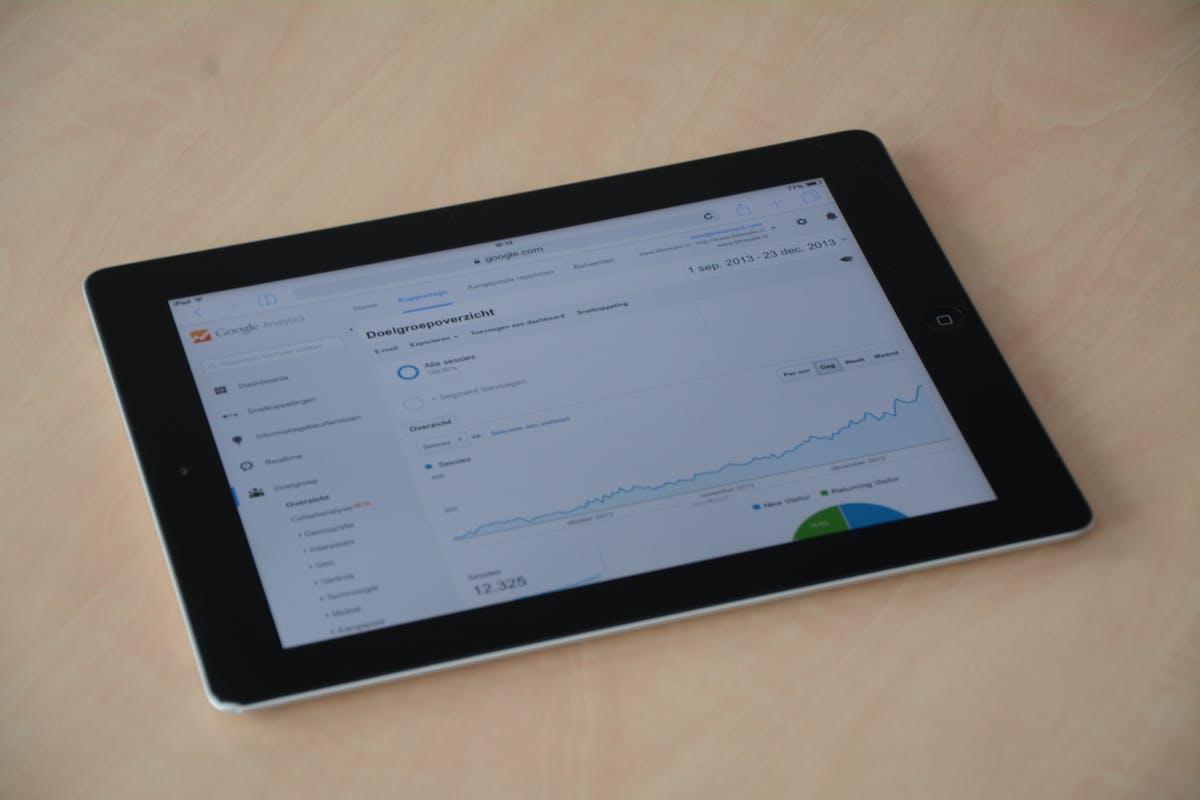
GA4 counts every key event that fires during a session, including duplicates. If your contact form fires a thank-you page view AND a form_submit event AND a GA4 goal from GTM, that single form submission may be counted three separate times. Your conversion numbers look great. They’re also fiction.
How to audit: Go to GA4, ' Reports, ' Engagement, ' Events. Sort by event count for your key conversion events, then compare those numbers to actual form submissions in your CRM for the same period. If GA4 is showing three times the CRM number, you’ve got deduplication issues. Fix it in GTM by using trigger firing conditions that ensure each conversion event fires exactly once per session, no more, no less.
4. Attribution Model Configuration

GA4 defaults to a data-driven attribution model, which is the right call for most B2B sites. But it’s worth confirming this hasn’t been changed on properties that multiple team members have touched. Check under Admin, ' Attribution Settings, ' Reporting Attribution Model and verify it’s set to Data-driven. Also confirm the lookback window: 90 days for acquisition events, 30 days for other events. In our experience working with B2B clients who have longer sales cycles, these windows are appropriate, but if your average deal cycle runs six months or more, understand that GA4’s attribution model has hard limits that simply don’t reflect your reality.
5. GA4-to-CRM Alignment Check

Your GA4 conversion count and your CRM lead count should be within 15% of each other for organic-sourced contacts. Pull organic conversions from GA4 for a 30-day period. Pull organic-sourced contacts created in your CRM for the same period. If that ratio drops below 0.85, you’ve got an attribution gap, and in our experience, it’s usually a UTM capture problem.
The most common fix: ensure hidden form fields are capturing utm_source, utm_medium, utm_campaign, and gclid from the URL and passing them to the CRM on form submission. It’s not glamorous work, but it’s the connective tissue between your analytics and your pipeline. Our analytics setup service covers full UTM-to-CRM implementation if you’d rather have someone else wire this up correctly the first time.
// UTM Parameter Capture: reads UTM values from URL and stores in sessionStorage
// Place this script in GTM as a Custom HTML tag firing on All Pages (DOM Ready)

(function() {
  // Parse UTM parameters from the current URL
  var params = new URLSearchParams(window.location.search);

  var utmFields = [
    'utm_source',
    'utm_medium',
    'utm_campaign',
    'utm_term',
    'utm_content',
    'gclid',      // Google Ads click ID, critical for paid attribution
    'fbclid'      // Meta click ID, include if running Meta ads
  ];

  // Store each UTM param in sessionStorage (persists across page views in same session)
  utmFields.forEach(function(field) {
    var value = params.get(field);
    if (value) {
      sessionStorage.setItem(field, value);
    }
  });

  // On form submission: populate hidden fields from sessionStorage
  // Add hidden inputs to your forms with IDs matching the field names above
  document.addEventListener('submit', function(e) {
    var form = e.target;
    utmFields.forEach(function(field) {
      var hiddenInput = form.querySelector('input[name="' + field + '"]');
      var storedValue = sessionStorage.getItem(field);
      if (hiddenInput && storedValue) {
        hiddenInput.value = storedValue;  // Passes UTM data to CRM via form POST
      }
    });
  }, true);
})();

// Required hidden form fields (add to every lead capture form):
//
//
//
//
6. Spam and Bot Traffic Filtering

GA4 includes built-in bot filtering, but let me be direct: it doesn’t catch everything. Sophisticated referral spam and form submission bots still make it through regularly. Bot traffic quietly inflates lead counts, sometimes substantially, and the numbers look great in a monthly report until someone compares them to actual pipeline.
How to detect it: look for sessions with 0-second engagement time paired with high event counts, and watch for suspicious referral sources that send bursts of traffic with zero conversions. Also flag any form submissions that don’t appear in your CRM, those are almost always bots. Enable Google Signals and confirm the “Filter out known bots and spiders” setting is toggled on inside your data stream. It won’t solve everything, but it removes the obvious noise.
7. Cross-Domain Tracking
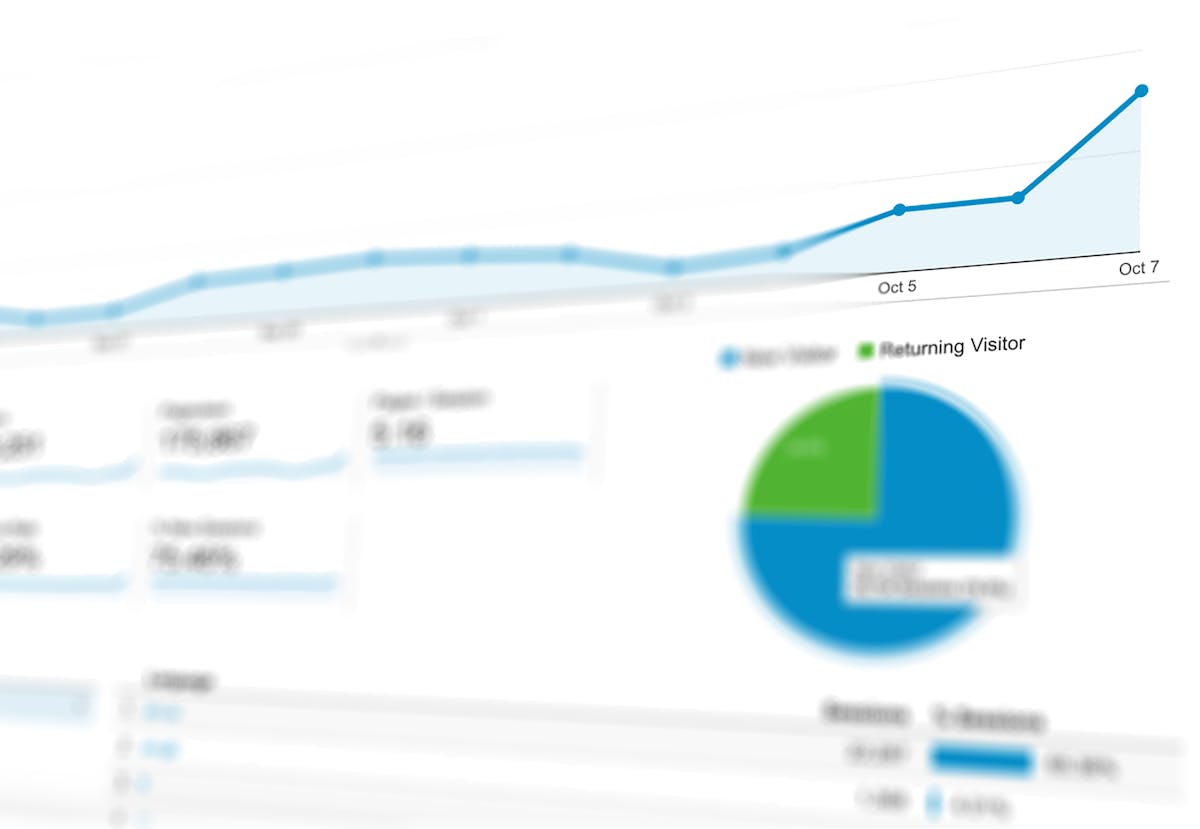
If your marketing site and your application live on different domains, GA4 treats them as separate sessions by default. A visitor who clicks a CTA on your marketing site and signs up in your app shows up as two completely separate users, and the conversion gets attributed to direct traffic instead of the marketing channel that actually drove the click. This is one of the most expensive attribution errors we find, and it’s almost always invisible until someone goes looking for it.
Where to check: Admin, ' Data Streams, ' your stream, ' Configure Tag Settings, ' Configure Your Domains. Verify your app domain is listed. If it’s not, add it to the cross-domain measurement list in both GA4 property settings and GTM. But here’s where it gets interesting, many teams add it in one place and forget the other, which means it still doesn’t work. Do both.
// GTM: GA4 Configuration Tag with Cross-Domain Tracking
// Update your existing GA4 Configuration tag in GTM with the linker parameter

// In GTM → Tags → GA4 Configuration → Fields to Set, add:
// Field Name: linker
// Value: (use the object below)

// OR configure via gtag directly in your base GA4 tag:
gtag('config', 'G-XXXXXXXXXX', {
  // Cross-domain linker: list ALL domains that share the same GA4 property
  'linker': {
    'domains': [
      'www.yourmarketingsite.com',   // Primary marketing domain
      'app.yourproduct.com',          // App/product subdomain
      'checkout.yourproduct.com'      // Checkout domain (if separate)
    ],
    'accept_incoming': true,          // Accept linker parameters from listed domains
    'decorate_forms': true            // Auto-decorate form action URLs with linker param
  },
  // Confirm these match your GA4 Admin → Data Streams → Configure Your Domains list
  'send_page_view': true
});

// VERIFICATION: After deploying, use GA4 DebugView to confirm:
// 1. session_id is consistent across domain transitions
// 2. No new "session_start" event fires when user moves from marketing → app domain
// 3. Original traffic source (utm_source, medium) persists on the app domain
What Comes After the Audit

Running through this checklist takes 2-3 hours for an experienced analyst. Fixing everything takes another 3-5 hours in GTM. It’s not fast work, but the payoff is a GA4 property you can actually trust, one where conversion data connects to pipeline data and channel decisions are grounded in accurate attribution rather than comfortable-looking numbers that don’t hold up under scrutiny.
If you’d rather have an expert run the audit and implement the fixes, our GA4 Analytics Audit covers all 7 points and delivers a GA4 Health Report, Data Layer Specification, GTM Container Audit, Fix Priority Matrix, and a 30-minute findings review. $2,500 flat. 5 business days. If you want the full SEO picture alongside your analytics, start with the Organic Growth Audit instead.
Ready to Turn SEO Into Revenue?
MV3 Marketing builds data-driven SEO programs that tie organic growth directly to pipeline. Get a free strategy audit.
Related Reading
Share this article

Alex Carter leads SEO and content strategy at MV3 Marketing, specializing in generative engine optimization, technical SEO, and AI-driven content systems for B2B companies.
Ready to audit your organic growth opportunity?
$2,500 flat. 5 business days. Six deliverables tied to pipeline , not rankings. No retainer required.
Get the Organic Growth Audit →