What did we find in our own Search Console data?
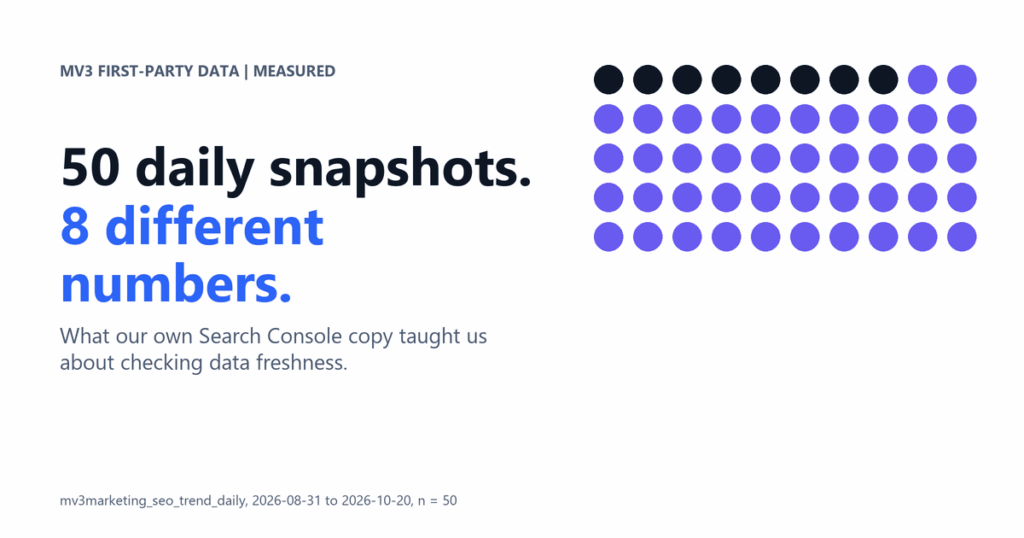
We sell analytics and SEO work, so we keep a daily copy of our own Search Console totals in a database. Before writing this guide we queried that copy. The table holds 50 daily snapshots from 2026-08-31 to 2026-10-20, and each row stores clicks, impressions and average position for the trailing seven days (MEASURED, MV3 Supabase table mv3marketing_seo_trend_daily, queried 2026-10-20).
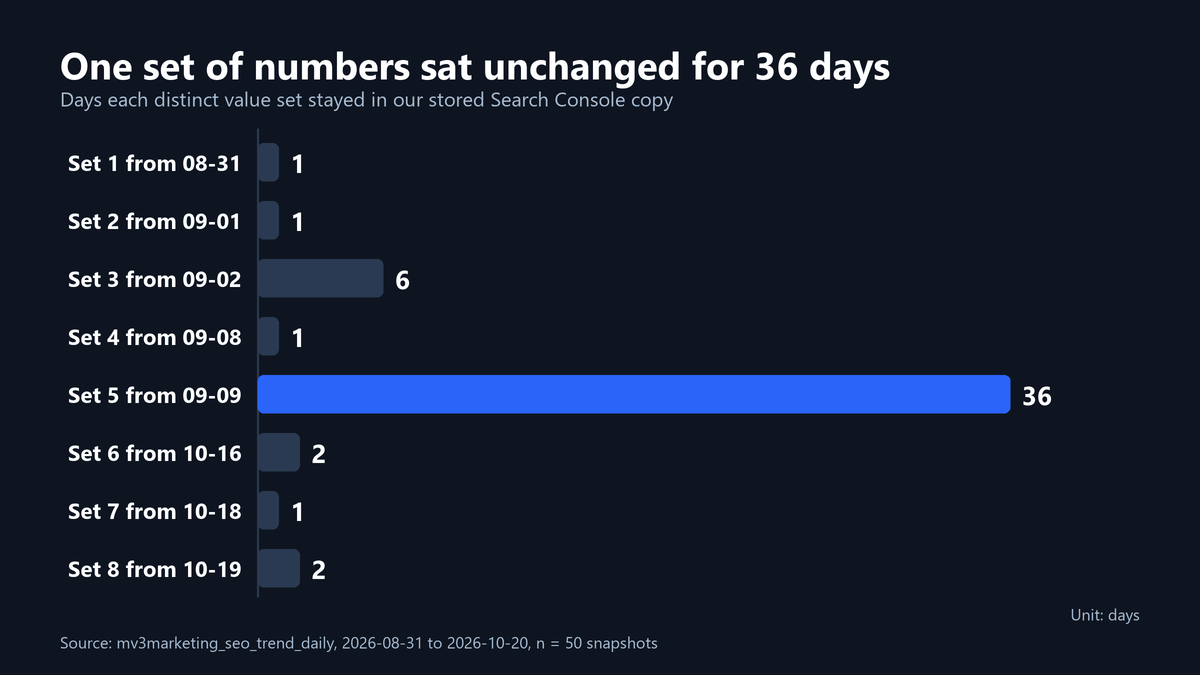
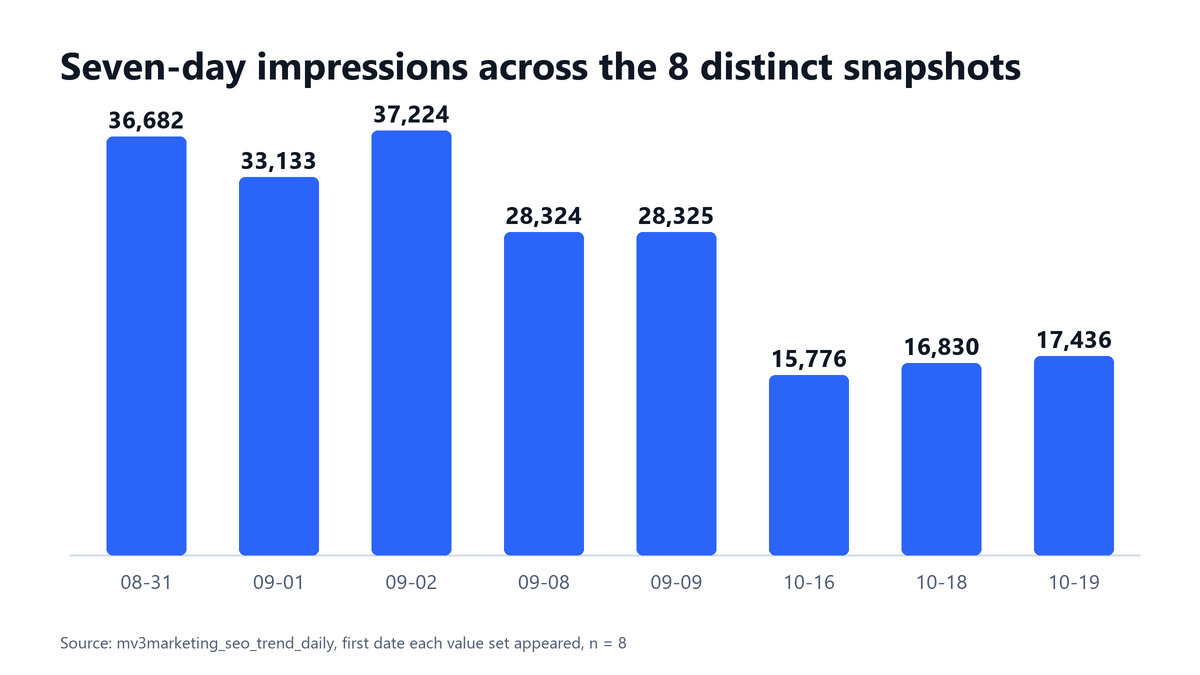
A trailing seven-day window should change almost every day. Ours did not. Across those 50 rows there were only 8 distinct combinations of clicks, impressions and position. One combination, 19 clicks and 28,325 impressions at an average position of 41.04, sat unchanged in 36 rows in a row, from 2026-09-09 to 2026-10-15.
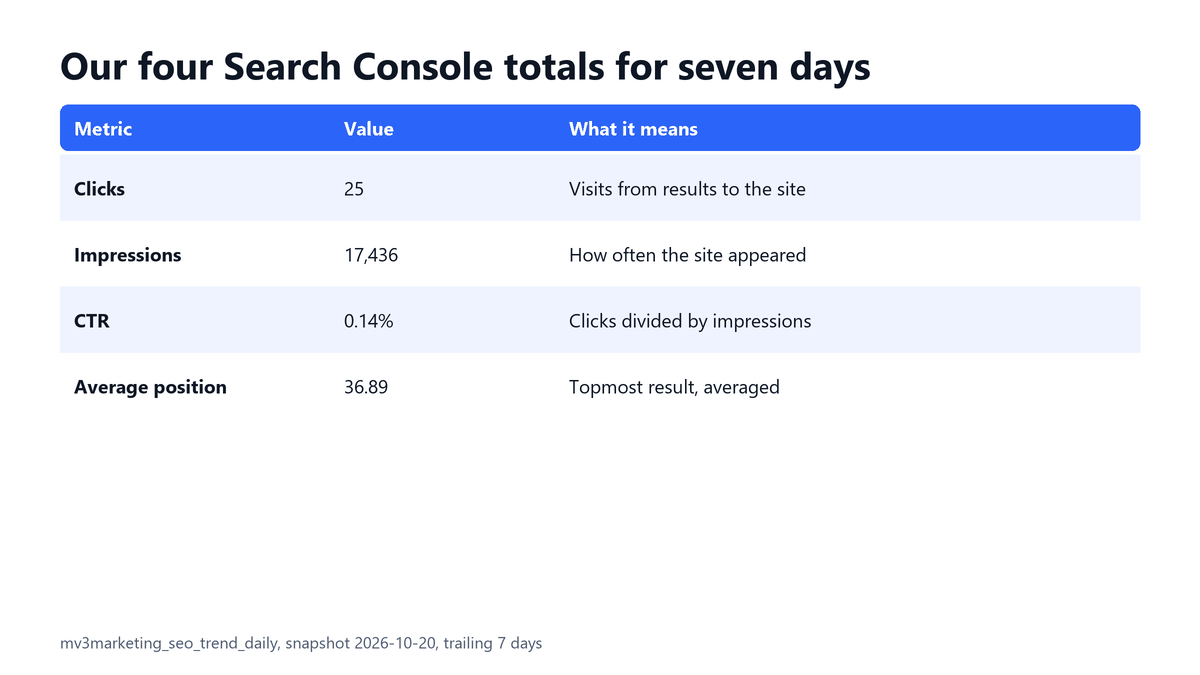
The fresh numbers tell a second story. In the latest snapshot, 2026-10-20, the property recorded 25 clicks against 17,436 impressions in seven days. That is a click-through rate of about 0.14 percent at an average position of 36.89.
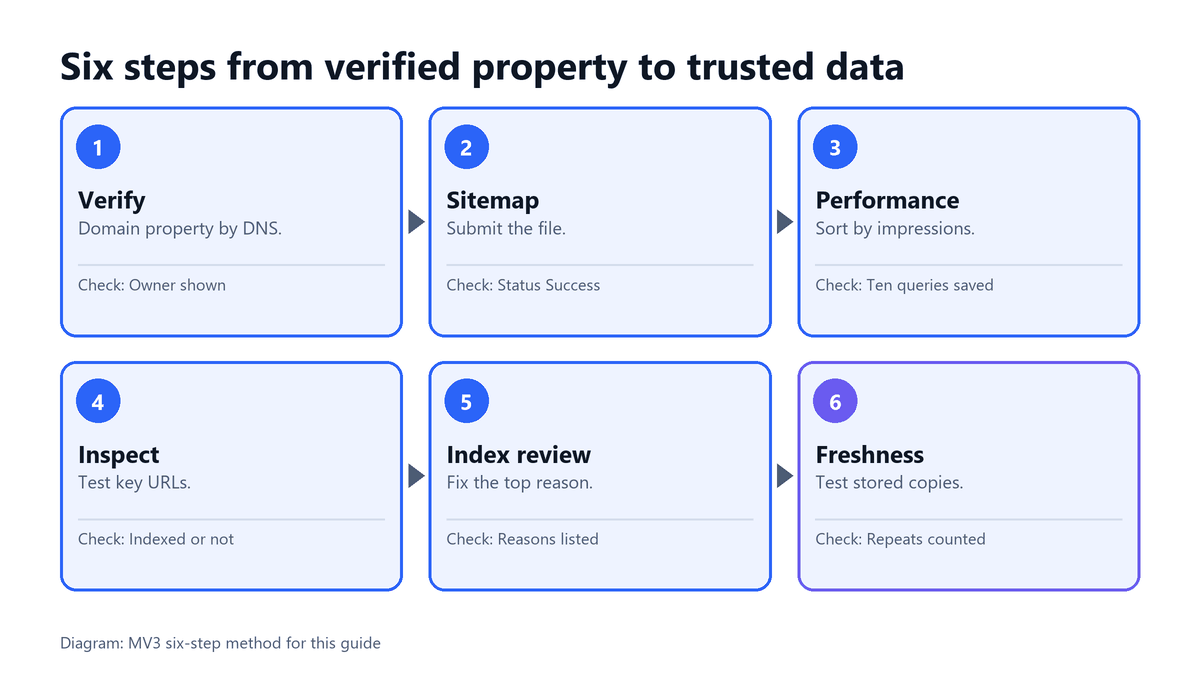
Both findings point to the same habit. Search Console is only useful if you read it on purpose and check that what you read is current. The six steps below show how, and step 6 turns the stale-feed problem into a test you can run yourself.
Before you start
You need a Google account, access to your domain registrar or DNS host, and about 30 minutes. Skill level is beginner to intermediate. By the end you will have a verified property, a submitted sitemap, one saved view of your queries, and a freshness check.
Disclosure. MV3 Marketing sells SEO and analytics services, so we have a commercial interest in you using this data well. Everything here works without hiring us.
Step 1: How do you verify a Domain property?
Open Search Console, choose Add property, and pick the Domain option. Google explains the benefit plainly: “Domain properties are useful because they include data for all protocol (http/https) and subdomain variations of your property” (Search Console Help, verify your site ownership). That matters for B2B SaaS sites that run a blog, docs and an app on separate subdomains.
Google also tells you to “add a DNS record to your domain provider’s record list to prove ownership.” Copy the TXT record Google shows, add it at your DNS host, then click Verify.
| Property type | What it covers | Verification |
|---|---|---|
| Domain | All protocols and subdomains | DNS record only |
| URL prefix | One exact address prefix | Several methods, including DNS |
Expected result: the property appears in your list with a verified owner. Common mistake: verifying only the www address and then wondering why the blog subdomain has no data.
Step 2: Where do you submit a sitemap?
Open the Sitemaps report and enter the address of your sitemap file. Google describes the file this way: “A sitemap is a file on your site that tells Google which pages on your site we should know about” (Search Console Help, Sitemaps report). If your site has many sections, read our XML sitemap guide for large B2B SaaS sites before you submit one giant file.
Check it worked. The report lists your sitemap with a status of Success and shows the discovered page count. A status of Couldn’t fetch means Google could not read the file.
Expected result: your sitemap listed with a recent read date. Common mistake: submitting a sitemap that returns a redirect or a login page.
Step 3: How to use Google Search Console’s Performance report
This report is where most of the value sits. Google says “the default view of the report shows click and impression data for your site in Google Search results for the past three months” (Search Console Help, Performance report). It defines the main metrics in two short sentences: “CTR (click-through rate): The click count divided by the impression count.” And: “Average position: The average position of the topmost result from your site.”
Switch on all four metrics, then open the Queries tab and the Pages tab. Sort queries by impressions, not clicks. High impressions with a low click-through rate are your cheapest wins, because Google already shows you and searchers simply skip you.
Here is the arithmetic on a made-up page, labelled ILLUSTRATIVE. A page with 2,000 impressions and 30 clicks has a click-through rate of 30 divided by 2,000, which is 1.5 percent. Rewriting its title and description to match the query better could raise the rate, but nothing in the report guarantees it will.

Our own numbers fit the left panel. With 17,436 impressions and 25 clicks, the property sits in the high impressions, low click zone for a lot of queries. That is a to-do list, not a verdict on the content.
Expected result: a saved list of ten queries with high impressions and low click-through. Common mistake: treating average position as one fixed rank. It averages the topmost result across many searches, so it moves with the mix of queries.
Step 4: How do you inspect a single URL?
Paste a full page address into the bar at the top. The URL Inspection tool shows what Google has on record for that page. One caveat from Google’s own help page: “This is not a live test. The results shown are from most recently indexed version of a page, not the live version on the web” (Search Console Help, URL Inspection tool).
Use the live test option after you fix something, then request indexing if the page is eligible. Google notes there is a daily limit of inspection requests for each property, so save requests for pages that matter.
| Field | What it tells you | Action if wrong |
|---|---|---|
| Indexing status | Whether the page is in Google’s index | Fix the cause shown, then request indexing |
| Canonical | Which address Google treats as the main one | Align the canonical tag and internal links |
| Rendered page | How the crawler sees the content | Check scripts that hide text |
Expected result: you can say in one line whether a given page is indexed and why. Common mistake: reading an old result as if it described today’s page.
Step 5: What do you do with the indexing and page reports?
Open the page indexing report and read the reasons pages are not indexed. Do not try to clear every line. Sort the reasons by how many of your important pages each affects, and fix the top one first. Pages you never wanted in search, such as thank-you pages, can stay excluded.
Pair this with traffic data you can trust. If you want a script-based way to pull the same numbers, our post on the Search Console API workflow covers it, and our guide to zero-click searches and B2B pipeline explains why impressions without clicks are common now.
Rule of thumb. Fix problems on pages that bring or should bring pipeline. Ignore warnings on pages that exist only for the site’s own plumbing.
Expected result: a short written list of the top two reasons important pages are missing from the index. Common mistake: requesting indexing for dozens of low-value URLs and ignoring the one template that causes the problem.
Step 6: How do you check that your stored data is fresh?
Many teams copy Search Console totals into a dashboard or database. That is useful, and it is also where our own copy went stale. The test is simple: a trailing window of seven days should rarely repeat exactly, day after day. Compare each snapshot with the one before it and count the repeats.
We ran this on our real rows in a scratch SQLite database. The code below is the exact query we executed.
SELECT COUNT(*) AS repeated_days, MIN(d) AS first_day, MAX(d) AS last_day
FROM (
  SELECT d, c, i, p,
         LAG(c) OVER (ORDER BY d) AS pc,
         LAG(i) OVER (ORDER BY d) AS pi,
         LAG(p) OVER (ORDER BY d) AS pp
  FROM snap
)
WHERE c = pc AND i = pi AND p = pp;
What this does: it flags every day whose clicks, impressions and position match the previous day. Output on our 50 rows:
repeated_days | first_day  | last_day
42            | 2026-09-03 | 2026-10-20
So 42 of the 49 day-to-day comparisons were identical. A common error is running this on weekly data, where repeats are normal. The chart below shows the eight distinct impression totals that the table actually held.
We cannot tell from the table alone why the feed stopped refreshing. What we can say is that the live report and our copy disagreed, and only the live report was right. For related reading on trusting numbers, see our B2B marketing analytics dashboard guide and our GA4 key events guide.
Expected result: a count of repeated days for your own copy, ideally near zero. Common mistake: trusting a dashboard because the chart looks smooth.
What goes wrong most often?
| Symptom | Likely cause | Fix |
|---|---|---|
| No data after verification | Data takes time to appear for a new property | Wait, then recheck the Performance report |
| Subdomain missing | URL-prefix property instead of Domain | Add a Domain property through DNS |
| Sitemap shows an error | File blocked, redirected or malformed | Open the file in a browser, fix, resubmit |
| Dashboard flat for weeks | Stale copy of the data | Run the repeat-day query from step 6 |
Checklist recap
- Domain property verified through DNS.
- Sitemap submitted and readable.
- Performance report sorted by impressions, ten low-click queries saved.
- Top two indexing reasons written down.
- Stored copies tested for repeated values.
If you would rather have a team run this loop for you each week, book a call with MV3 Marketing. You can also read about our analytics work.
FAQ
Is Google Search Console free?
Yes. You verify your site and use the reports without paying Google. Costs come only from the time you spend or from services you hire.
How is Search Console different from GA4?
Search Console reports how your site appears in Google Search, including impressions and clicks. GA4 reports what visitors do after they arrive. You need both to connect a query to a lead.
Why do my clicks differ from GA4 sessions?
The two tools count different things at different points, so exact matches are unusual. Compare trends over time rather than single days.
How often should I check Search Console?
Weekly is enough for most B2B SaaS sites. Check right after a migration, a template change or a large content release.
Share this article

Vance Moore is Chief Growth Officer at MV3 Marketing and leads its team of SEO professionals, engineers and auditors.
Ready to audit your organic growth opportunity?
$2,500 flat. 5 business days. Six deliverables tied to pipeline , not rankings. No retainer required.
Get the Organic Growth Audit →