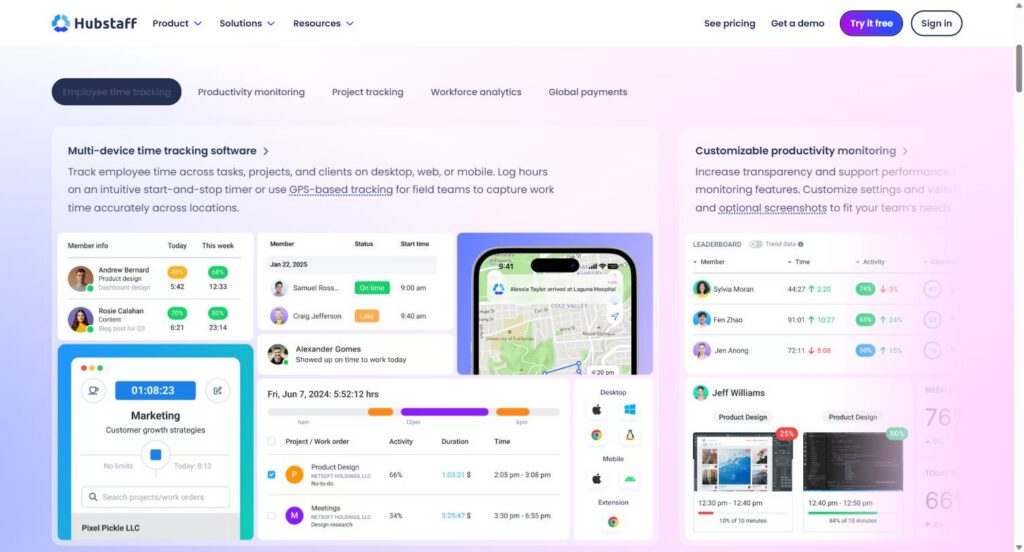
Hubstaff is time tracking and workforce analytics software built for remote and distributed teams. It logs hours across desktop, web, and mobile, turns that data into timesheets and reports, and connects to payroll and project management tools so agencies and SaaS companies can bill accurately and see where time actually goes, without babysitting a spreadsheet.
Disclosure: MV3 Marketing participates in affiliate and partner programs, including Hubstaff’s. This post contains affiliate links, and we may earn a commission if you sign up through them, at no extra cost to you. We only write about tools we’ve researched directly and would recommend to our own clients.
The problem most distributed teams have with time tracking
If you run an agency or a SaaS company with contractors, remote employees, or a mix of both, you’ve probably lived through some version of this: someone submits a timesheet at the end of the week that’s clearly a guess, a client asks why a project ran over budget and nobody has a good answer, or a freelancer’s invoice doesn’t match what you expected to pay. None of this means anyone is lying. It means nobody had a reliable system for capturing time as it happened.
Manual timesheets fail for a predictable reason: people fill them out from memory, usually days after the work happened. Hubstaff exists to close that gap by capturing time automatically, at the moment work is being done, and turning it into records that hold up for client billing, payroll, and project profitability decisions.
You can try Hubstaff here if you want to follow along with a live account while reading the rest of this walkthrough.
What Hubstaff actually tracks, and how
Hubstaff’s core is a start-and-stop timer available on desktop apps (Mac, Windows, Linux), a Chrome extension, mobile apps, and a web timer. Team members clock in against a specific project or task, and Hubstaff logs the elapsed time automatically rather than relying on anyone typing in hours later. For field teams, GPS-based location tracking can log where work happened, which matters for service businesses and any team with people working outside a desk.
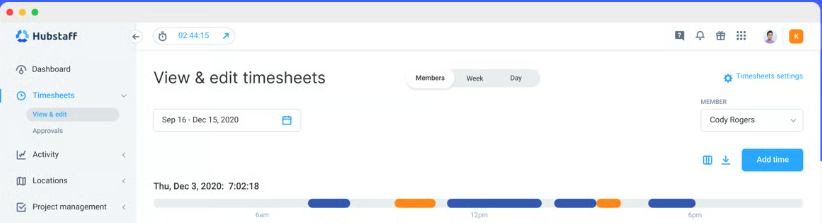
Every tracked minute rolls up into online timesheets. Employees can review and submit their own hours, and managers approve entries from a central dashboard instead of chasing people down individually. That approval workflow is what turns raw tracked time into something you can actually invoice against or run through payroll with confidence.
Activity monitoring and screenshots, without turning into surveillance software
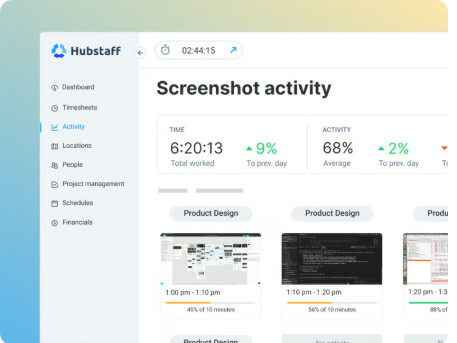
This is the feature that gets the most attention, and also the most anxiety, so it’s worth explaining plainly. Hubstaff can capture activity levels (based on keyboard and mouse input while the timer is running) and optional screenshots at intervals you control. Critically, none of this is fixed. Hubstaff lets you customize screenshot frequency, blur screenshots, or turn them off entirely, and you can set different monitoring rules for different teams. A dev team building client software and a data-entry team might reasonably need different visibility settings, and Hubstaff is built to let you configure that instead of forcing one policy on everyone.
The honest framing here: activity monitoring is a tool for visibility into work patterns and for resolving disputes (a client questioning an invoice, a contractor’s hours not matching output), not a replacement for actually managing people. Teams that use it well treat it as a transparency layer both sides can see, not a one-way surveillance feed.
Project budgets and expense tracking
On Hubstaff’s Grow plan and above, you can set budgets or time limits per project and get alerted when a project is at risk of going over. For an agency running multiple retainers or a SaaS company tracking internal engineering time against a feature budget, this is the difference between finding out a project blew its budget after the invoice goes out versus catching it while there’s still time to adjust scope or staffing. Expense tracking sits alongside this, so non-billable costs tied to a project don’t get lost outside the time data.
Payroll and payments
Hubstaff integrates with payment and payroll providers including PayPal, Wise, Payoneer, Deel, and Gusto, letting teams set pay rates and bill rates per person and generate payroll runs or contractor payments directly from tracked time. For a company paying a mix of W-2 employees and international contractors, this removes a step that otherwise happens manually in a spreadsheet: converting hours into pay, twice, for two different payment rails.
Reporting and integrations
Hubstaff ships more than 20 built-in reports covering timesheets, attendance, payroll, invoicing, and project budgets, so you’re not exporting raw time logs into another tool to make sense of them. On the integration side, Hubstaff connects natively to more than 35 tools, including project management platforms like Asana, Trello, ClickUp, Jira, and GitHub, accounting tools like QuickBooks and FreshBooks, and CRM/helpdesk tools like Salesforce, Zendesk, and Freshdesk. Anything not natively supported can usually be connected through Zapier.
Where this actually matters for agencies and SaaS teams
The features are only useful if they solve a real operational problem. A few patterns show up repeatedly in how agencies and distributed SaaS teams actually use Hubstaff.
Billing clients by tracked hours, not estimates
Agencies running retainers or hourly contracts live or die by the accuracy of their time data. When an account team can pull up total time and dollars spent per team member, task, project, client, and billing period, invoicing stops being a reconciliation exercise at the end of the month. One agency case study Hubstaff has published, an operations-heavy shop managing client retainers, describes cutting invoicing and contractor payment turnaround substantially once budget and hours data was accurate and easy to pull, instead of assembled by hand from separate logs. That’s the practical payoff of automated tracking over manual timesheets: the data is already structured for billing the moment the work is done.
Remote contractor accountability at scale
The clearest example of this at scale is Anequim, a staffing and recruitment company that runs a nearly fully remote team of about 1,000 people. Anequim adopted Hubstaff to replace a previous vendor with weak support and a stalled product roadmap. According to Hubstaff’s published case study, automating PTO tracking alone produced a 5% productivity increase, and the CFO estimated that without Hubstaff’s automation the company would have needed roughly six additional payroll staff and ten additional client services staff to manage the same headcount. That’s the kind of leverage automated time and workforce data provides once a distributed team crosses from a few dozen people into the hundreds: manual reconciliation simply doesn’t scale, but a system that captures time and turns it into payroll-ready data does.
You don’t need a 1,000-person remote team to feel a smaller version of this. Any agency managing five or ten contractors across time zones runs into the same reconciliation problem at a smaller scale, just with less room in the budget to hire people to manage it manually.
Freelancer and design cost tracking
Yac Chat, a smaller distributed company, uses Hubstaff specifically to determine design and development costs and manage freelancers alongside full-time team members, without adding administrative overhead to figure out what a given piece of work actually cost. For SaaS companies that lean on freelance designers or contract developers for specific sprints, this is the same underlying need as agency client billing: knowing what something cost in actual hours, not a rough guess after the fact.
Cutting the admin work around billing itself
A few more of Hubstaff’s published customer stories point at a pattern worth naming directly: the time savings aren’t just in tracking hours, they’re in everything downstream of tracking hours. Software company Emsisoft reports saving roughly 80 hours a month on admin work and reducing billing-related expenses by about 20% after moving off manual processes. A staffing operation, Slash Staffing, describes cutting payroll processing from a full day down to under five minutes. These are the kind of numbers that show up when the underlying time data is already structured correctly, so nobody is retyping hours from one system into another before an invoice or a pay run can go out.
If any of these situations sound familiar, you can start a free Hubstaff trial here and see how it maps onto your own team’s billing and payroll workflow before committing to a plan.
Manual timesheets versus automated tracking
It’s worth being specific about what actually changes when a team moves off manual timesheets, because “automated is better” isn’t a useful claim on its own.
With manual timesheets, time is recorded from memory, usually at the end of the day or week. That introduces rounding, forgotten tasks, and the general tendency for estimates to drift in whichever direction is more convenient. Disputes over invoices become he-said-she-said conversations because there’s no underlying record beyond a number someone typed in.
With automated tracking, the timer captures the actual start and stop of work in real time, tied to a specific project or task. Screenshots and activity data, when used, give both sides evidence to resolve a billing question quickly instead of arguing about it. Hubstaff has published this directly as a use case: using tracked proof of work to resolve client billing disputes faster, because there’s a timestamped record instead of two conflicting memories.
None of this means automated tracking is a perfect substitute for good management or clear scoping. It doesn’t fix a badly scoped project or a contractor who’s a poor fit. What it does is remove the ambiguity around what hours were actually worked, which is a different and more solvable problem.
Pricing, honestly
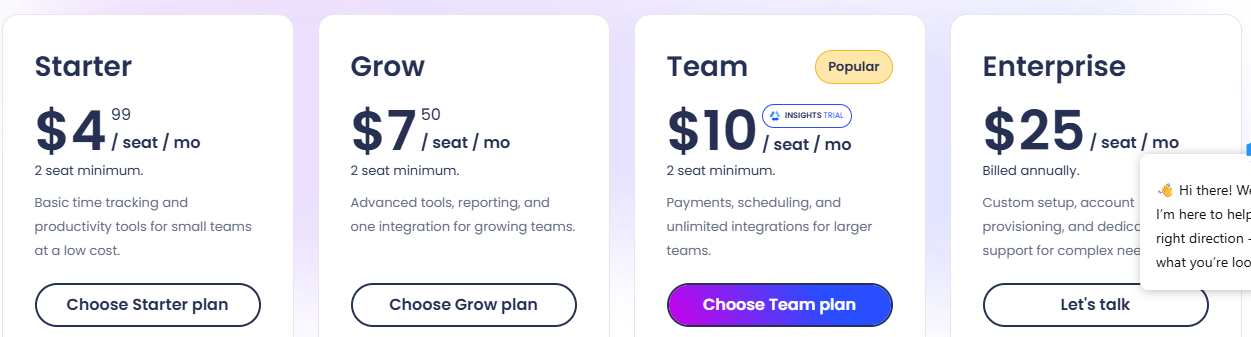
Hubstaff’s pricing is per seat, billed monthly, quarterly, or annually, with a 2-seat minimum on all paid plans (a Free plan exists for a single user). As of this writing, the published tiers are:
| Plan | Price per seat (annual billing) | What you get |
|---|---|---|
| Free | $0 (1 seat only) | Basic time tracking, limited screenshots, limited reports and clients |
| Starter | $4.99/mo | Time tracking, activity levels, invoices, up to 5 clients |
| Grow | $7.50/mo | Unlimited clients, project budgets, expenses, idle time controls, one integration |
| Team | $10/mo | Unlimited screenshots and integrations, payments, payroll, scheduling, timesheet approvals, workforce analytics |
| Enterprise | $25/mo | SSO, SCIM provisioning, HIPAA and SOC 2 Type II compliance support, higher API limits, VIP onboarding |
Two things worth knowing before you pick a tier. First, seats are billed for anyone with access, including managers and owners, not just people actively tracking time, so the real cost of rolling Hubstaff out to a 15-person team is 15 seats, not just the people doing billable work. Second, most agencies billing clients by the hour will need at least the Grow plan for project budgets, and most teams running payroll through the platform will need Team. The Starter plan is really built for straightforward time tracking without the budgeting or payroll layer.
Every paid plan starts with a 14-day free trial, no credit card required, so you can test the actual workflow, timesheets, screenshots, reports, before deciding which tier fits. You can start that trial here and cancel anytime if it’s not a fit.
Setting it up without overbuilding it
The most common mistake teams make when adopting time tracking software is trying to configure every setting on day one. A more workable rollout looks like this:
- Start with just the timer and timesheets. Get everyone tracking time against real projects before adding activity monitoring or screenshots.
- Set monitoring policy by team, not company-wide. A support team and a design team don’t need identical screenshot and activity settings.
- Connect one project management tool first (Asana, Trello, ClickUp, or whatever you already use) so time syncs to existing task structures instead of creating a second system people have to update.
- Turn on project budgets once you have a few weeks of real tracked-time data to set realistic thresholds against, rather than guessing on day one.
- Add payroll or payment integrations last, after timesheets and approvals are already running smoothly, so you’re not debugging tracking accuracy and payment automation at the same time.
This mirrors how we’d recommend rolling out most operational software for a distributed team: get the core workflow adopted first, then layer in the parts that require more judgment about what your team actually needs. If your team is also dealing with inconsistent onboarding on top of inconsistent time tracking, our walkthrough of using Trainual for SOP-based onboarding covers the same “systemize it once, stop repeating yourself” problem from the training side.
Where Hubstaff fits, and where it doesn’t
Hubstaff is built for teams that need to convert time into money, whether that’s client invoices, payroll, or profitability data on internal projects. It’s a strong fit for agencies billing hourly or on retainer, SaaS companies managing distributed engineering or support teams, and any company blending W-2 employees with international contractors who need consistent pay rate handling across both.
It’s a weaker fit for teams that don’t bill or budget by time at all, small in-office teams where informal check-ins already work fine, or organizations where the internal politics of activity monitoring would create more friction than the billing accuracy is worth. Reasonable, well-run teams land on different sides of that second point, and it’s worth having the conversation explicitly with your team about what’s being tracked and why before rolling it out, rather than treating it as a settings change nobody needs to weigh in on.
For the agencies and SaaS teams we work with, the pattern that shows up most is the first one: once client billing and contractor payroll depend on accurate hours, the manual version of this system stops being sustainable well before the automated version becomes worth the seat cost. If that’s where your team is, Hubstaff’s free trial is a reasonable way to find out fast whether it’s the right fit before you commit to a paid plan.
Common questions before you sign up
Does Hubstaff work if my team is on desktop, mobile, and web at the same time?
Yes. The timer is available as native desktop apps for Mac, Windows, and Linux, a Chrome extension, iOS and Android mobile apps, and a browser-based web timer, and time logged from any of them rolls into the same timesheets and reports.
Can employees see their own activity data, or is it manager-only?
Visibility settings are configurable by team and by role. Hubstaff is built so employees can see their own activity levels and screenshots, not just have that data collected and hidden from them, which is part of why it works as a transparency tool rather than a one-way monitoring feed.
Do I need the most expensive plan to bill clients accurately?
No. Basic time tracking, invoicing, and activity levels are available on the Starter plan. You only need to move up to Grow if you want project budgets and expense tracking, or to Team if you want payroll and payment processing built into the same platform.
What happens to tracked data if someone disables screenshots?
Time and activity-level data still track normally. Screenshots are one layer of the monitoring stack, not a requirement for the timer or timesheets to function, so a team can run accurate time tracking and billing with screenshots turned off entirely if that’s the right call for how they operate.
For more on how we think about operational and marketing tooling for distributed SaaS and agency teams, see our marketing glossary or browse our full services overview.
Share this article

Ryan Brooks leads technical SEO at MV3 Marketing, specializing in schema architecture, entity graphs, crawlability, and the structural signals that determine whether AI answer engines cite a page.
Ready to audit your organic growth opportunity?
$2,500 flat. 5 business days. Six deliverables tied to pipeline , not rankings. No retainer required.
Get the Organic Growth Audit →